Enter Zeroes to Calculate Accurate Final Grades in Canvas
Did you know that an empty dash (-) is not the same as a zero (0) in the Canvas gradebook? In Canvas, a dash means an assignment is ungraded. Canvas ignores these ungraded assignments when calculating a student’s total grade, which can make final grades appear higher than they should be.
Replacing dashes with zeros for missing work (or “EX” for excused work) helps you to:
- Prevent inflated grades at the end of the semester when entering scores into Faculty Center.
- Maintain consistent grade transparency for students by clearly indicating which work is excused (EX) or missing (0) throughout the semester.
How To
There are three possible methods to use, depending on your class size and preferences.
- Method 1: Manually enter scores by replacing empty dashes (-) in the gradebook with either a zero (0) or excused (EX) indicator.
- Method 2: To fill missing grades for many students at once for a single assignment, use “Set Default Grade” to assign zeros more quickly. See How do I set a default grade for an assignment in the Gradebook from the Instructure Community for instructions and step-by-step screenshots.
- Method 3: If you want to streamline grading, maintain accurate running grade totals, and prevent student misconceptions about their current standing, opt to “Automatically Apply Zeros for Missing Submissions” in your gradebook for all assignments. See How do I apply a Missing Submission policy in the Gradebook from the Instructure Community for instructions and step-by-step screenshots.
Important Note on ‘View Ungraded as 0’
Within your Canvas gradebook settings, in the “View Options” tab, you will see an option called “View Ungraded as 0”. This is only a temporary visual tool for instructors. It shows you what student totals would look like with zeros entered, but it does not permanently change actual grades or update what students see in their view of Canvas. You must use one of the methods above to permanently record zeros.
Did you know?
Once a month we feature simple tips for using Canvas and other tools more effectively. Ask us a question or share a tip of your own by email.
Recent Updates
Example
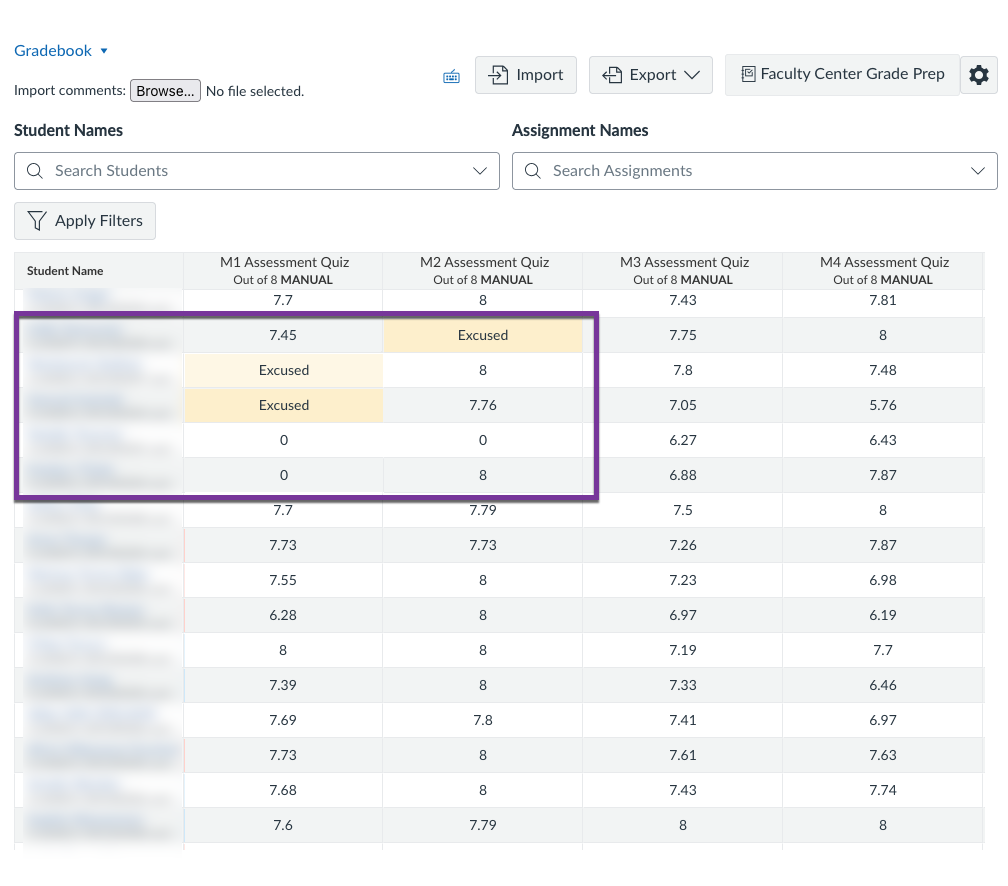
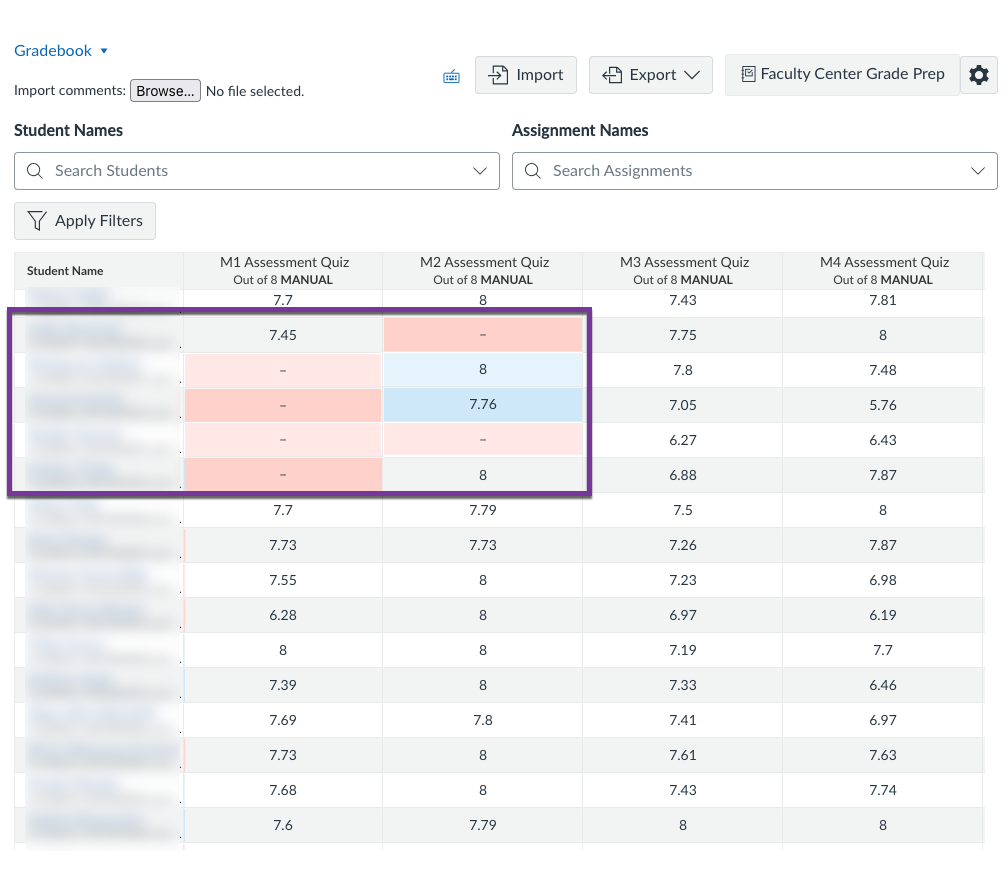
Compare the two images below showing an instructor’s view of the Canvas gradebook before and after entering zeros and excused indicators.
Before
After