Set a Grading Scheme in Canvas
Did you know Canvas can match final grade percentages to letter grades?
By default, Canvas only shows student final grades as a percentage. But by enabling a grading scheme in Canvas you can:
- Easily see a letter grade to enter into faculty center at the end of the semester
- Align grading in Canvas with your syllabus and institutional policies
- Reduce student confusion about final letter grades
How To
- Open your Canvas course and click Settings in the Course Navigation menu.
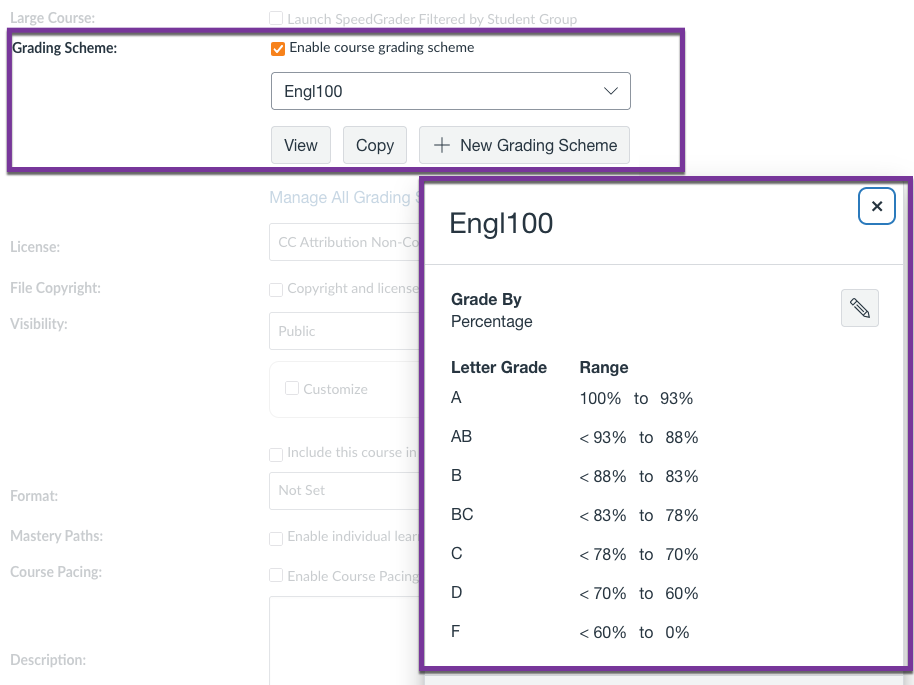
- Scroll down to the Grading Scheme section and check the box next to Enable course grading scheme.
- Select an existing grading scheme from the drop-down menu, or choose Add New Grading Scheme to create your own. There is no single standardized grading scheme for campus; instead they are often set by courses, programs, or departments. See How do I enable a grading scheme for a course, How do I add a grading scheme in a course and How do I edit a grading scheme from The Instructure Community for instructions and step-by-step screenshots.
- Click Update Course Details to save your changes.
Did you know?
Once a month we feature simple tips for using Canvas and other tools more effectively. Ask us a question or share a tip of your own by email.
Recent Updates
Example
The example below shows an English 100 course with a custom grading scheme set to define an A, AB, B, BC, C, D, and F. Students and instructors will be able to match final grade percentages to letter grades with this setting enabled.